SEO9 min read
Google Business Profile for Roofers: Setup, Categories, and Photos
Google Business Profile for roofers, step by step: who should own it, service-area setup, video verification, categories, services, photos, posts, and reviews.

In this article
- Before you start: decide who owns it
- How to set up a Google Business Profile for a roofing company
- Services and description: where the keywords actually go
- Photos and video: show the work
- Posts, hours, and reviews: keeping it alive
- A simple rhythm for your profile
- Questions roofers ask about Google Business Profile
A Google Business Profile for roofers is the listing that shows up when a homeowner searches “roofer near me” and Google answers with a map. It’s free, it takes about an afternoon to set up, and a lot of the problems we see on roofing profiles start in that first afternoon: the wrong account owns it, the address is showing when it shouldn’t be, the category is off, or the only photo is a logo.
This guide walks through the setup the way Google’s own help pages describe it, plus the upkeep that keeps a profile useful after it’s live. If you already have a profile, read it as an audit and check each step against what’s live.
The short answer
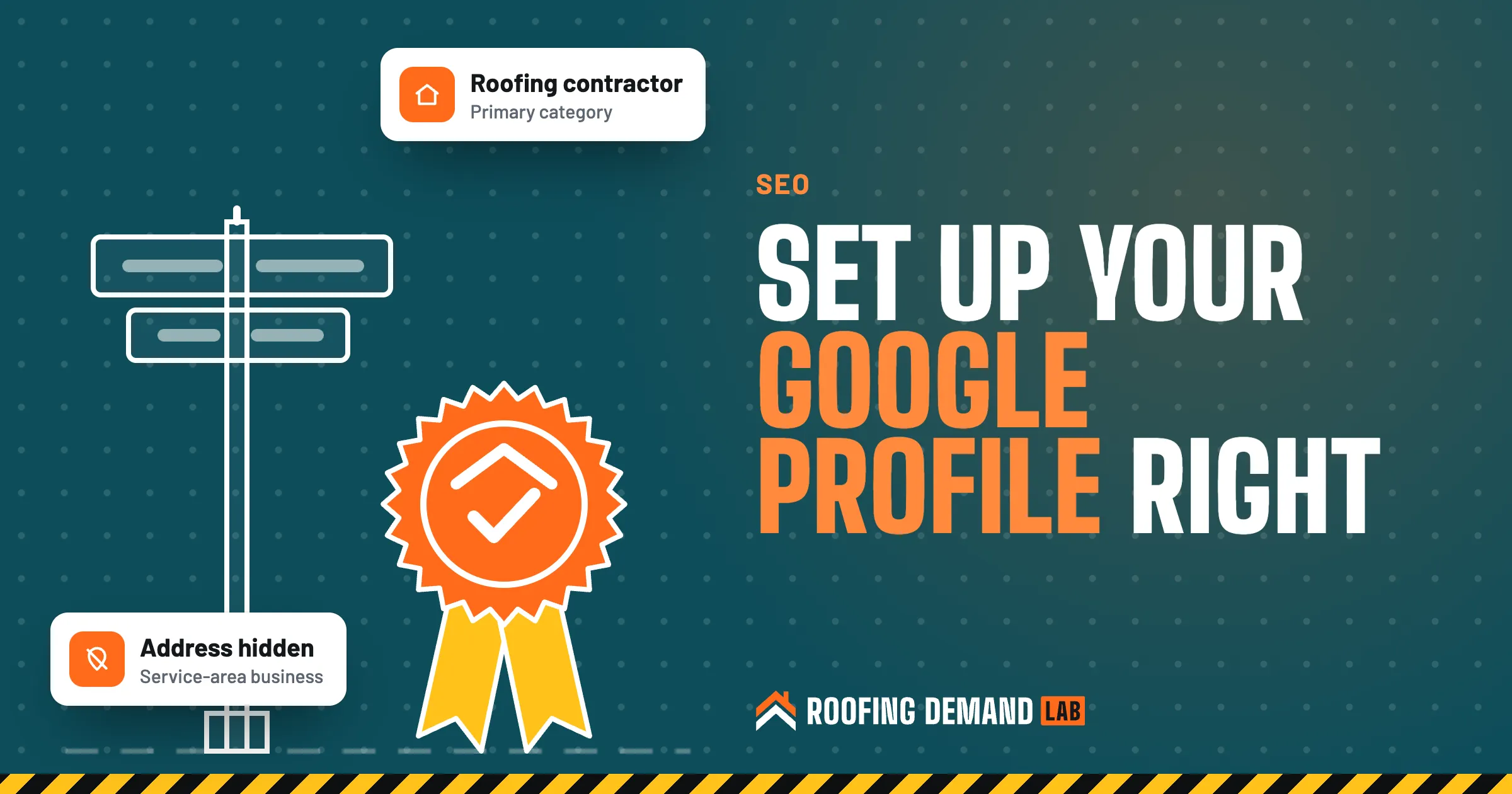
Create the profile under a Google Account on your business email, set it up as a service-area business with your address hidden, pick “Roofing contractor” as the main category, and verify it with whatever method Google offers. Then fill in services, a plain description, and real job photos, and keep it current with posts, hours, and replies to reviews.
Before you start: decide who owns it
Google’s setup page says that if you create a new Google Account for the profile, you should “sign up with your business email domain” (Google’s guide to creating a Business Profile (opens in a new tab)). So use an account tied to the company, not a crew lead’s personal Gmail and not an account your web designer made for you.
Then think about roles. A profile can have several owners but only one primary owner, and managers can do most of the work but “can’t add or remove users or remove the profile” (Google’s page on owners and managers (opens in a new tab)). The setup we’d want for any roofing company:
- You (the owner of the company) hold primary ownership.
- A partner or office manager can be a second owner if you trust them with everything.
- Your marketing agency, us included, gets manager access you can remove any time.
If someone else verified a profile for your company years ago, Google’s setup flow points you to requesting ownership.
How to set up a Google Business Profile for a roofing company
1. Search for your business before you create anything
Start at business.google.com/create and type your company name. If it already appears in the suggestions, select it rather than making a new one. Google says service-area businesses “can only have one profile for the whole area that they serve” (Google’s service area help page (opens in a new tab)), and its setup page warns that duplicate profiles in the same metro area can lead to suspension.
Use your real company name. Google’s guidelines say your name should “reflect your business’s real-world name” and that “including unnecessary information in your business name isn’t permitted” (Google Business Profile guidelines (opens in a new tab)). No “Roof Repair & Replacement” tacked on. We covered the naming side in how to pick a roofing company name.
2. Pick “Roofing contractor” as your category
The category is how Google first decides what you do. For almost every residential roofer it’s “Roofing contractor.” Google’s guidelines say to “use as few categories as possible to describe your overall core business,” so add a secondary category only if it’s real work you sell, like gutters.
3. Tell Google customers don’t come to you
The setup asks whether customers can visit a location. If you don’t have a staffed storefront or showroom, the answer is no. You go to them. Google’s guidelines say a service-area business “should hide your business address from customers,” and its service area page says that if you don’t serve customers at your address, you should remove it from the profile.
So hiding the address isn’t a workaround. It’s the setup Google asks roofers without a storefront to use.
4. Add your service areas
You can list up to 20 service areas by city, postal code, or other named area. Google says you “can’t set your service area as a radius distance around your business,” and that the whole area “shouldn’t be more than about 2 hours of driving time” from where you’re based (Google’s service area help page (opens in a new tab)).
Pick the towns you actually want work in.
5. Add a local phone number and your website
Google’s guidelines ask for “a phone number that connects to your individual business location” and a website that represents your business. The setup page recommends a number for each location rather than a remote call center.
6. Verify, using whatever method Google gives you
Don’t skip this step. Your photos only appear once the profile is verified, and you can’t reply to reviews before it. Google’s verification page is blunt about the method: “Verification methods are automatically determined by Google and can’t be changed” (Google’s verification guide (opens in a new tab)). Depending on your business, you may be offered a phone or text code, email, a live video call, a mailed postcard, or a recorded video.
Video verification for roofers
If Google asks for a video, it has to be recorded live on your phone through your Business Profile, run “at least 30 seconds,” and be “an unedited, unique, and complete recording with no breaks.” For a service-area business, Google asks you to show street signs or landmarks at your business address, proof the business exists (like professional tools or branded apparel), and proof you manage it. Review “can take up to 5 business days” (Google’s video verification page (opens in a new tab)).
For a roofer, that’s often a walk from the street sign to your shop or truck, then your tools and branded gear. If you get a postcard instead, Google says most codes arrive within 14 days and the codes expire after 30 days.
Services and description: where the keywords actually go
Plenty of owners ask how to add keywords to a Google Business Profile. The honest answer is that you don’t stuff them anywhere. You describe what you do, accurately, in the two places built for it.
Services. Under Edit services, Google suggests predefined services based on your category, and you can add custom ones (Google’s page on adding services (opens in a new tab)). Add every job type you sell: roof replacement, roof repair, storm damage inspection, metal roofing, flat roofing, gutters. Google says custom services that break its policy are rejected automatically, and that service names shouldn’t include prices or phone numbers. You can add a short description to each service.
Description. Google caps it at 750 characters and says “do not include URLs or HTML code” (Google’s page on editing your profile (opens in a new tab)). Say what you do, which towns you cover, how long you’ve been at it, and what makes your crew different.
For the searches homeowners make before they call, see our guide to roofing keywords.
Photos and video: show the work
A profile with nothing but a logo looks like a business that might not exist. Real photos are the quickest fix. Google’s photo guidelines set the specs (Google Business Profile photo guidelines (opens in a new tab)):
| What | Google’s guideline |
|---|---|
| Photo format | JPG or PNG |
| Photo file size | 10 KB to 5 MB |
| Photo resolution | 720 x 720 pixels recommended, 250 x 250 minimum |
| Video length | Up to 30 seconds |
| Video file size | Up to 75 MB |
| Video resolution | 720p or higher |
The same page says photos should have “no significant alterations or excessive use of filters” and that “the image should represent reality.” It also notes Google may show a customer’s photo instead of your cover photo if yours is low quality, and that photos only appear once the profile is verified.
What’s worth shooting on a roofing job:
- Your trucks and trailer with the logo visible
- The crew tearing off, from a distance (get the homeowner’s OK before posting their house up close)
- Flashing, valleys, and ridge lines on a finished roof
- Before and after from the same angle
- A 20-second clip walking the finished roofline
Add a few every week instead of fifty once.
Posts, hours, and reviews: keeping it alive
Posts
Google lets you publish three kinds: updates, offers, and events (Google’s page on posts (opens in a new tab)). Updates fit roofers best: a finished job in a named town, a new service, a note that you’re booking inspections after a storm. Two details from that page trip people up. Posts with a phone number in the text “might get rejected” if Google can’t tie the number to your business, and posts are archived after six months unless you set a date range.
Offers and insurance work
Keep offers simple, like a seasonal gutter cleaning price. If an offer touches insurance claims or deductibles, check your state’s rules and talk to your attorney first. The rules on what contractors can offer or say around claims vary from state to state.
Hours
Google asks for your “regular customer-facing hours of operation.” Set special hours for holidays and other temporary changes, so a homeowner calling the day after a storm doesn’t see “Closed” when your phone is in fact on.
Reviews
Google’s review tips say you can ask customers to “visit a Google link or scan a QR code” (Google’s tips to get more reviews (opens in a new tab)). Put that link in your job-complete text and the QR code on your invoice. Reply to reviews too. Google says replying shows customers “you value their feedback,” and you can only reply once the profile is verified (Google’s guide to managing reviews (opens in a new tab)).
Two review rules
Ask every customer, not just the happy ones. Google’s policy bars businesses from offering incentives such as “payment, discounts, free goods and/or services” for reviews and from trying to “selectively solicit positive reviews” (Google’s policy on fake engagement and rating manipulation (opens in a new tab)). And the FTC’s rule on fake reviews lets it seek civil penalties against businesses that knowingly fake or buy them (FTC announcement (opens in a new tab)).
Our roofing reviews guide has the full routine for asking.
A simple rhythm for your profile
- Every job Photos before, during, and after. Review link the day you finish.
- Every week Reply to new reviews and add a few photos.
- Every month Publish a post or two and check that hours, phone, and services are still right.
- Before holidays and after storms Update special hours.
None of this guarantees a spot in the map results. Google says there’s “no way to request or pay for a better local ranking,” and that results are based mainly on relevance, distance, and prominence (Google’s local ranking tips (opens in a new tab)). It also says “more reviews and positive ratings can help your business’s local ranking.” A complete, current profile covers the parts you control. For the ranking side, our local SEO checklist for roofing companies picks up where this guide stops.
Every plan we offer includes Google Business Profile setup and management, and it’s a core part of our roofing SEO work.
Questions roofers ask about Google Business Profile
Is Google Business Profile free?
Yes. Google says “creating a Business Profile and listing your business on Google is free” (Google Business Profile (opens in a new tab)). You’ll spend time on photos, posts, and reviews, but the listing costs nothing.
How do I verify my Google Business Profile without a postcard?
You can’t pick the method. Google chooses it, and it may offer a phone or text code, email, a live video call, or a recorded video instead of mail. If video is offered, record it live on your phone, keep it to one unedited take of at least 30 seconds, and show your location, your tools or branded gear, and that you manage the business.
Why isn’t my roofing business showing up on Google?
First, is the profile verified, and does it show “Get verified” again? Google says that button reappearing means it couldn’t completely verify your business. If it’s verified, check your category, service areas, and how far the searcher is from your base, since distance is one of the main things Google weighs.
How do I add keywords to my Google Business Profile?
Through your services list and your description, written plainly. Don’t add keywords to your business name. Google’s guidelines don’t allow it, and the same page warns that adding extra information to the name could get the profile suspended.